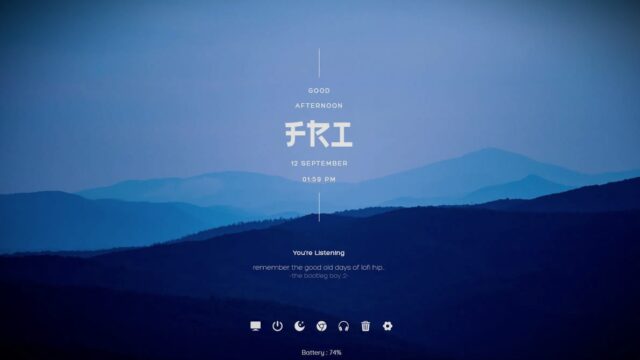
Roland RAINMETER SKIN

Transform your desktop into a stylish and functional workspace with the Roland Rainmeter Skin.
This skin package includes a Circular Clock, Greetings, Week, and Now Playing components. Explore the features of each skin and follow the installation steps to enhance your desktop aesthetics and productivity.
Roland RAINMETER SKIN — Key Features & Highlights
- Circular Clock:Enjoy a visually pleasing Circular Clock that adds a touch of sophistication to your desktop. Stay informed about the current time in a stylish and functional manner.
- Greetings:The Greetings skin provides a warm welcome to your desktop. Personalize your workspace with a friendly greeting, creating a pleasant and inviting environment.
- Week:Stay organized and informed about the current week with the Week skin. This component adds a useful calendar feature to your desktop, aiding in time management.
- Now Playing:Elevate your music experience with the Now Playing skin. Track the details of the currently playing music, ensuring you stay connected to your favorite tunes while working or relaxing.
The Roland Rainmeter Skin offers a comprehensive package of visually appealing and functional components for your desktop.
Elevate your desktop experience with a Circular Clock, Greetings, Week calendar, and Now Playing skin. Download and install Roland to enjoy a personalized and organized workspace.
How to Install Roland RAINMETER SKIN on Windows 10 / 11
- Install Rainmeter: Ensure you have the latest version of Rainmeter installed from the official website (rainmeter.net).
- Download the Skin Package: Click the "Download Skin" button on this page to save the skin package (.rmskin or .zip archive) to your computer.
- Load the Skin: Double-click the downloaded .rmskin file and click "Install" in the Rainmeter Skin Installer window (if it is a .zip/.rar archive, extract the folder into Documents\Rainmeter\Skins and click "Refresh all" in the Rainmeter Manager).
- Customize Your Desktop: Right-click any active widget on your desktop to adjust scale, transparency, coordinates, or skin variables to match your wallpaper.