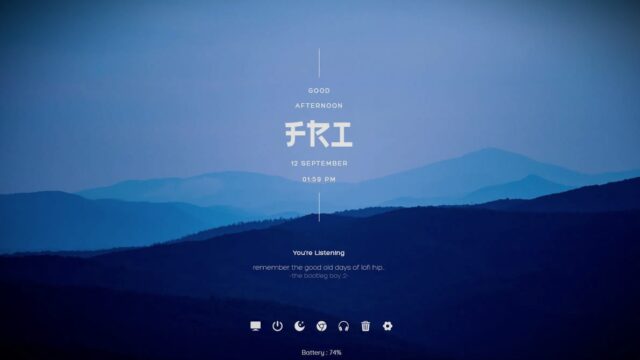
TECH-A Rainmeter Theme/Suite

The TECH-A Rainmeter Theme is a comprehensive desktop enhancement that includes monitoring widgets for CPU, drives, network activity, RAM, and a weather widget, as well as buttons and shortcuts for quick access to your favorite applications and actions.
TECH-A Rainmeter Theme – Features:
TECH-A Rainmeter Theme includes a variety of widgets and features to provide you with essential information and shortcuts for a more efficient and organized desktop experience.
- CPU Monitoring: Keep an eye on the performance of up to six CPUs, allowing you to monitor their usage and performance.
- Drive Information: Monitor information for up to six drives, including available storage space and other relevant data.
- Upload and Download: Stay informed about upload and download activity, helping you manage your network usage.
- RAM Usage: Monitor your computer’s RAM usage to ensure efficient performance.
- Buttons: Easily access buttons for various actions or shortcuts to your preferred applications and functions.
- Shortcuts: Create and manage shortcuts to quickly access your favorite applications or files for added convenience.
- Weather Widget: Stay updated with real-time weather information using a modified Vclouds weather widget, helping you plan your activities based on current conditions and forecasts.
Download and install this theme to enjoy a more organized and efficient desktop experience.
How to Install TECH-A Rainmeter Theme/Suite on Windows 10 / 11
- Install Rainmeter: Ensure you have the latest version of Rainmeter installed from the official website (rainmeter.net).
- Download the Skin Package: Click the "Download Skin" button on this page to save the skin package (.rmskin or .zip archive) to your computer.
- Load the Skin: Double-click the downloaded .rmskin file and click "Install" in the Rainmeter Skin Installer window (if it is a .zip/.rar archive, extract the folder into Documents\Rainmeter\Skins and click "Refresh all" in the Rainmeter Manager).
- Customize Your Desktop: Right-click any active widget on your desktop to adjust scale, transparency, coordinates, or skin variables to match your wallpaper.