SquarePlayer Rainmeter Skin
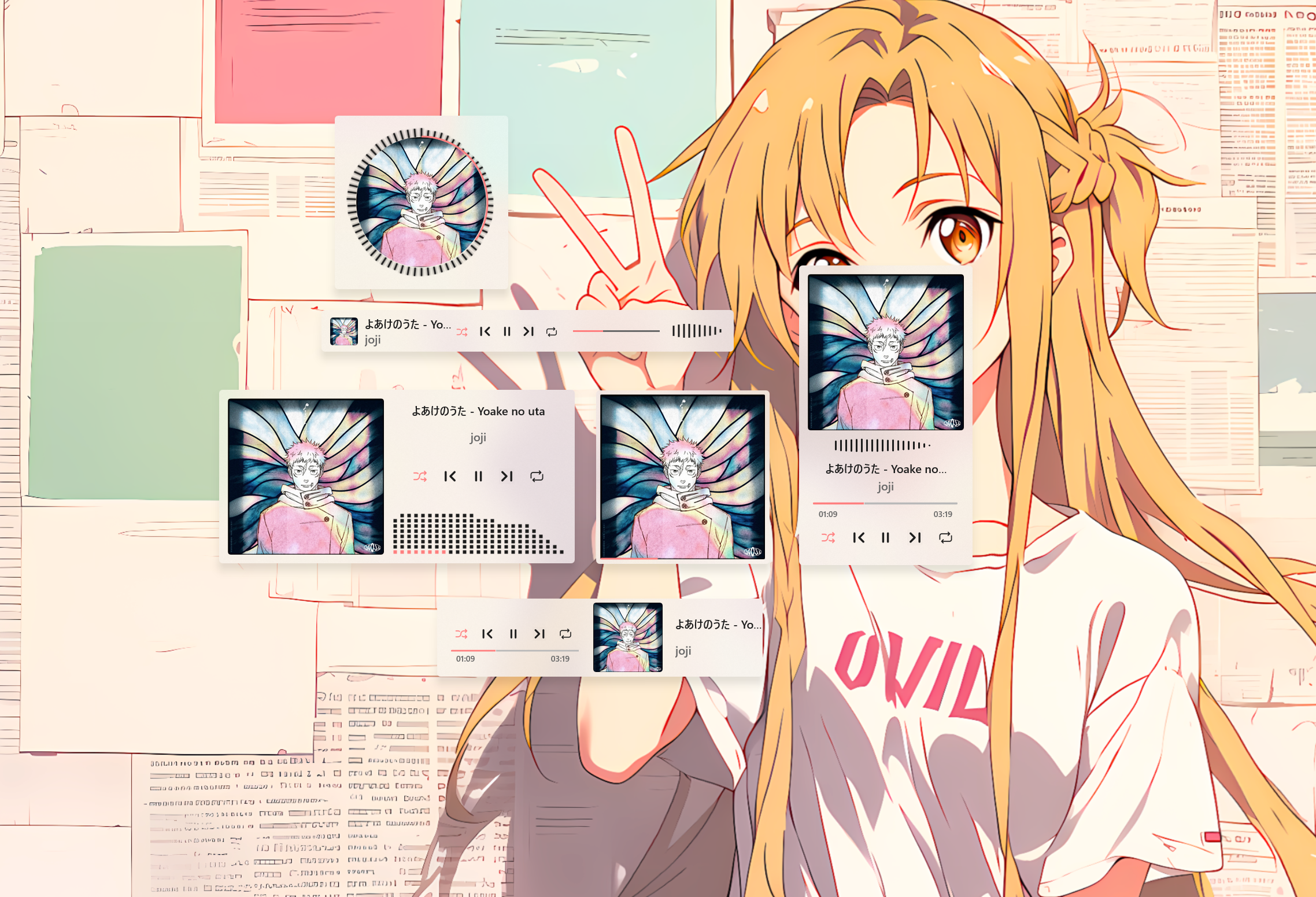
Transform your Windows desktop experience with SquarePlayer Rainmeter Skin, an advanced media controller and customization pack built specifically for modern operating systems. Designed by Meti0X7CB, this Rainmeter setup delivers a sleek, translucent interface that seamlessly integrates with your system’s design language. Featuring active audio visualizers, album art displays, and robust playback controls, it serves as the ultimate hub for controlling your favorite audio streams while keeping your workspace looking pristine.
SquarePlayer is a fantastic choice if you want to elevate your desktop sound spectrum widget setup without cluttering your monitor. It bridges the gap between functionality and aesthetics, allowing you to manage your rainmeter music player widgets and rainmeter spotify now playing widget effortlessly while complementing any anime, minimalist, or high-tech wallpaper.
About the SquarePlayer Rainmeter Skin
SquarePlayer is engineered to mimic the native Windows 11 design language, utilizing a frosted-glass blur effect and acrylic translucent backgrounds. The interface adapts dynamically to your system theme, matching your Windows accent colors and monitor scaling automatically upon launch. Whether you prefer a subtle bar layout or a prominent square aesthetic, the skin provides a polished look that enhances your daily media consumption.
The skin includes six distinct Rainmeter components: Bar, Blank, Mobile, Rectangle, Round, and Square. These variations give you complete freedom over how your media controls and desktop sound spectrum widget appear on screen. Each component can be managed independently through the Rainmeter application, making it simple to position and customize them to fit your exact workflow.
SquarePlayer Rainmeter Skin — Features & Highlights
1. Bar Component Media Controller
The Bar component offers a streamlined, horizontal layout designed for quick track management. It incorporates WebNowPlaying and system media transport controls to display track titles, artist names, and album art.
It features the Segoe UI font family for crisp text rendering, a visual progress bar indicator, and interactive mouse hover effects that adjust opacity smoothly. You can customize its scale and accent colors through the shared configuration files.
2. Blank Component Minimalist Player
The Blank layout strips away non-essential visual framing while retaining core media playback functionality. It relies on the FrostedGlass plugin to maintain a clean blur effect against your desktop wallpaper.
This component supports all major streaming platforms via WebNowPlaying and Windows SMTC, making it ideal for users who want a hidden-in-plain-sight rainmeter spotify now playing widget.
3. Mobile Style Player Layout
The Mobile component mimics smartphone media widgets, offering a compact vertical footprint. It pairs perfectly with secondary rainmeter music player widgets and desktop sound spectrum widget overlays.
Like other variants, it includes smooth hover transitions, real-time track updates, and full compatibility with local and browser-based media players.
4. Rectangle Component Layout
The Rectangle component provides a classic card-style presentation for your media playback. It utilizes rounded rectangular vector shapes and dynamic color matching to blend into your workspace.
It features detailed playback controls, progress tracking, and seamless integration with audio visualizer modules for an immersive listening experience.
5. Round Component Radial Widget
The Round component introduces a circular aesthetic to your desktop, featuring a radial gauge and ring indicator that visualizes track progress or volume levels.
It combines modern design elements with traditional control buttons, making it a standout addition to any custom Windows 11 desktop setup.
6. Square Component Layout
The Square component delivers a balanced, symmetrical interface that highlights album artwork alongside essential track details and playback toggles.
It utilizes the FrostedGlass plugin for acrylic transparency and supports dynamic color adjustments based on your active Windows theme settings.
7. Customizable Appearance & Audio Visualizer
SquarePlayer features a robust set of shared configuration files including Blocks.inc, MeterBands.inc, and Visualizer.inc that allow you to fine-tune your desktop audio visualizer widgets.
- Automatic Windows accent color synchronization.
- Dynamic primary monitor scaling adjustments.
- Widget scale and sizing adjustments.
- Audio visualizer sensitivity and band configurations.
- Media player target selection (Spotify, AIMP, iTunes, WebNowPlaying).
Frequently Asked Questions — SquarePlayer Rainmeter Skin
What widgets are included in SquarePlayer Rainmeter Skin?
SquarePlayer includes six distinct media player styles (Bar, Blank, Mobile, Rectangle, Round, and Square) equipped with active audio visualizers and WebNowPlaying integration.
How do I customize colors and scaling in SquarePlayer?
SquarePlayer automatically matches your Windows theme, accent color, and primary monitor scaling. Additional adjustments can be made via the shared .inc configuration files.
Is SquarePlayer compatible with Windows 10 and Windows 11?
Yes, SquarePlayer requires Rainmeter 4.5.23 or higher and is fully optimized for Windows 11 design standards while running smoothly on Windows 10.
What music players are supported by the skin?
The skin supports any application utilizing the Windows System Media Transport Controls API, as well as browser-based streaming sites via the WebNowPlaying plugin.
How to Install SquarePlayer Rainmeter Skin in Rainmeter
- Install Rainmeter: Ensure you have Rainmeter (4.5 or newer) installed from the official website (rainmeter.net).
- Download the Skin Package: Click the "Download Skin" button on this page to save the skin file (.rmskin or .zip archive) to your computer.
- Load the Skin: Double-click the downloaded .rmskin file and click "Install" in the Rainmeter Skin Installer prompt (if it is a .zip/.rar archive, extract the folder into Documents\Rainmeter\Skins and click "Refresh all" in the Rainmeter Manager).
- Customize Your Desktop: Right-click any active widget on your desktop to adjust scale, transparency, coordinates, or skin variables to match your wallpaper.
Meti0X7CB
Meti0X7CB is the creator and designer behind SquarePlayer Rainmeter Skin.